AI-powered audio cleanup tool

Remove breaths &
silence from any recording

Upload your podcast, voiceover, or interview.
DeBreather automatically detects and removes
breaths and silences. No editing skills needed.
Get clean audio in seconds.

Drop your audio file here

MP3 · WAV · FLAC · M4A · OGG · AAC · OPUS

Also supports MP4, MOV, WEBM. Select or drag & drop to extract audio automatically
No signup required
Local processing
Privacy first
AUDIO
Waveform Editor
Zoom ×1.0
0:00
00:00.00
Breath Remover
Sensitivity 40%
Min Duration 250 ms
Pause Duration 0.10 s
Fade Out 20 ms
Fade In 20 ms
Fade Curve
Silence Remover
Threshold −40 dB
Min silence 0.20 s
Padding 0.00 s
Speed
Rate ×1.00
00:00.00
Final duration:
Processing…

Everything Clean Audio Needs

Advanced detection algorithm · Visual editor · Smooth fades · Professional export

Breath Detection

Advanced audio analysis algorithms detect breath sounds based on their unique acoustic signatures. Adjustable sensitivity for precise control.

Silence Removal

Automatically remove silence. Our algorithm intelligently detects and removes unwanted pauses. Adjust threshold and padding as needed.

Waveform Editor

Zoom to 50×, drag segment borders, add or delete markers manually. Full visual control over your audio.

AI-Powered

Advanced AI-powered algorithms accurately detect breath sounds and silence. You can adjust parameters to fine-tune detection for your specific recording environment.

10× Faster

Process hours of audio in minutes. What used to take hours now takes seconds, letting you focus on creating great content.

Privacy First

All processing happens locally in your browser. Your files never leave your device or get uploaded to any server.

How it Works

A few simple steps to get clean professional audio

1

Upload your file

Select or drag and drop your audio or video file. We support MP3, WAV, FLAC, M4A, OGG, AAC, OPUS and MP4, MOV, WEBM formats.

2

Adjust Parameters

Fine-tune detection sensitivity and other settings to get the best results for your specific audio. Breaths highlighted in cyan, silence in red. Drag boundaries if necessary. Full control before export.

3

Preview & Export

Click APPLY CHANGES to process your audio and preview the results. Download your clean audio file in WAV or MP3 format.

Frequently Asked Questions

Got questions? We've got answers.

DeBreather uses advanced audio analysis algorithms to detect breathing sounds and silence based on their unique acoustic signatures. Our technology analyzes the audio waveform's energy levels, frequency patterns, and duration to identify breathing sounds with high accuracy. You can adjust the sensitivity to fine-tune detection for your specific recording environment.
Yes! DeBreather is designed to remove breathing sounds and silence while maintaining natural speech rhythm and flow. Rather than creating abrupt cuts, the tool intelligently adjusts the timing to ensure your audio sounds professional and natural. You can also control the pause duration to match your preference for pacing.
Yes! DeBreather can be used completely free of charge, with no limits on usage time or the number of processed files, and with access to all available features and tools. The only limitation of the Free version is that the uploaded file size is restricted to 5 MB, and the audio duration is limited to 30 seconds. However, the Pro subscription, available for a nominal fee, removes these limitations and allows processing files up to 500 MB in size and up to 1 hour in duration. We believe in making professional audio tools accessible to everyone.
Not at all! DeBreather processes your audio entirely within your browser. Your files never leave your computer or get uploaded to any server, ensuring complete privacy and security for your content.
DeBreather supports most common audio formats including MP3, WAV, M4A, OGG, AAC, FLAC and OPUS. You can also upload videos in MP4, MOV or WEBM formats – the algorithm will automatically extract the audio track, which will immediately appear in the waveform editor. Processed files are downloaded in high-quality WAV format to preserve audio fidelity. An export option to MP3 at 192 kbps is also available if you need to reduce file size without noticeable loss of quality.
We recommend keeping files under 100 MB for optimal browser performance, as all processing happens locally on your device. For longer recordings, you may want to split your audio into smaller segments before processing. With a Pro subscription, you can use files up to 500 MB in size and up to 1 hour in duration. When using the Free version, the uploaded file size is limited to 5 MB, and the audio duration is limited to 30 seconds.

Ready for Better Audio?

Professional audio in seconds. No sign-up needed.

Get Started Free

DeBreather Tutorial

Step-by-step guide: upload, detect, edit, preview, export.

Introduction

What is DeBreather?

DeBreather is a professional AI-powered audio cleanup tool that runs entirely on your machine. It removes breath sounds and silence with precision, using advanced audio analysis to detect breathing based on unique acoustic signatures. The system analyzes waveform energy, frequency patterns, and duration to achieve high accuracy. Sensitivity can be adjusted to match your recording environment – so your audio never leaves your device.
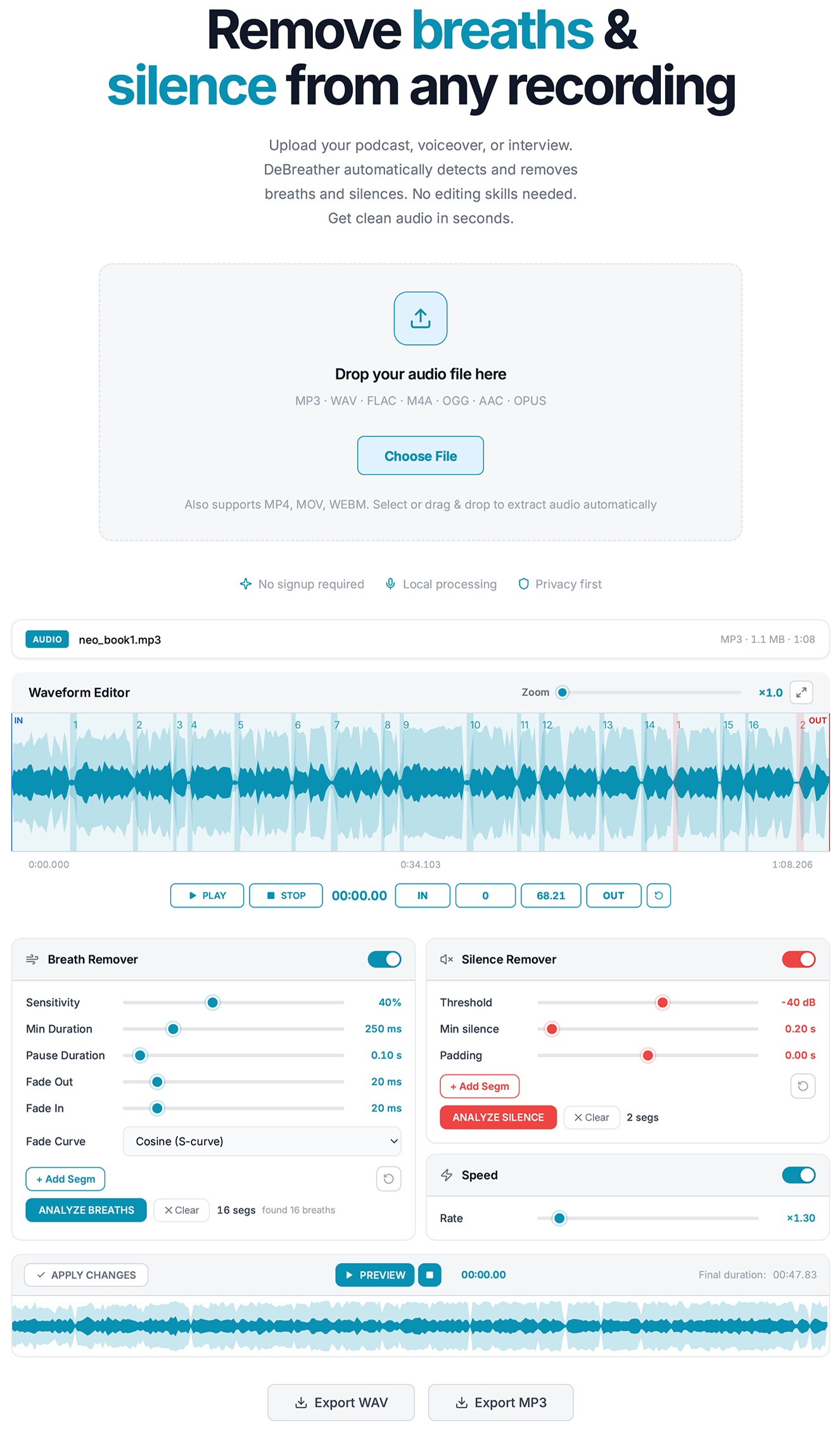
DeBreather overview

Breath Remover

Our advanced breath detection algorithm intelligently identifies and automatically removes unwanted breathing sounds. Fine-tune detection with configurable sensitivity, minimum duration, and pause duration. You can also manually edit segments as needed – add, remove, or adjust their boundaries.

Silence Remover

Our advanced silence detection algorithm intelligently identifies and automatically removes unwanted pauses. Fine-tune detection with configurable dB threshold, minimum duration, and real-time padding. You can also manually edit segments as needed – add, remove, or adjust their boundaries.

Waveform Editor

Full visual control over your audio. Zoom up to [×50.0], drag segment edges, manually add or delete segments with mouse clicks, use [IN] and [OUT] trim handles, and preview in real-time with seeking.

Speed Control

You can increase the playback speed of your audio up to [x5.00] in [x0.01] increments without changing the pitch. This is primarily used in the final stages of processing.

Live Preview

Preview lets you instantly hear the final, precise result, including all edits, before exporting. What you hear is what you get.

Export

Choose the export option that best suits your project. You can download your audio as lossless WAV PCM for mastering, or as MP3 at 192 kbps for distribution. All processing is done locally – no uploading to a server, no waiting, and no risk to your privacy.

Tip: Use Preview after applying changes to hear the exact final result before exporting.

Step 1

Upload Audio

Drag any audio file into the upload area or click [Choose File] to select one. The file is decoded locally in your browser using the built-in decoder – nothing is sent to the server.
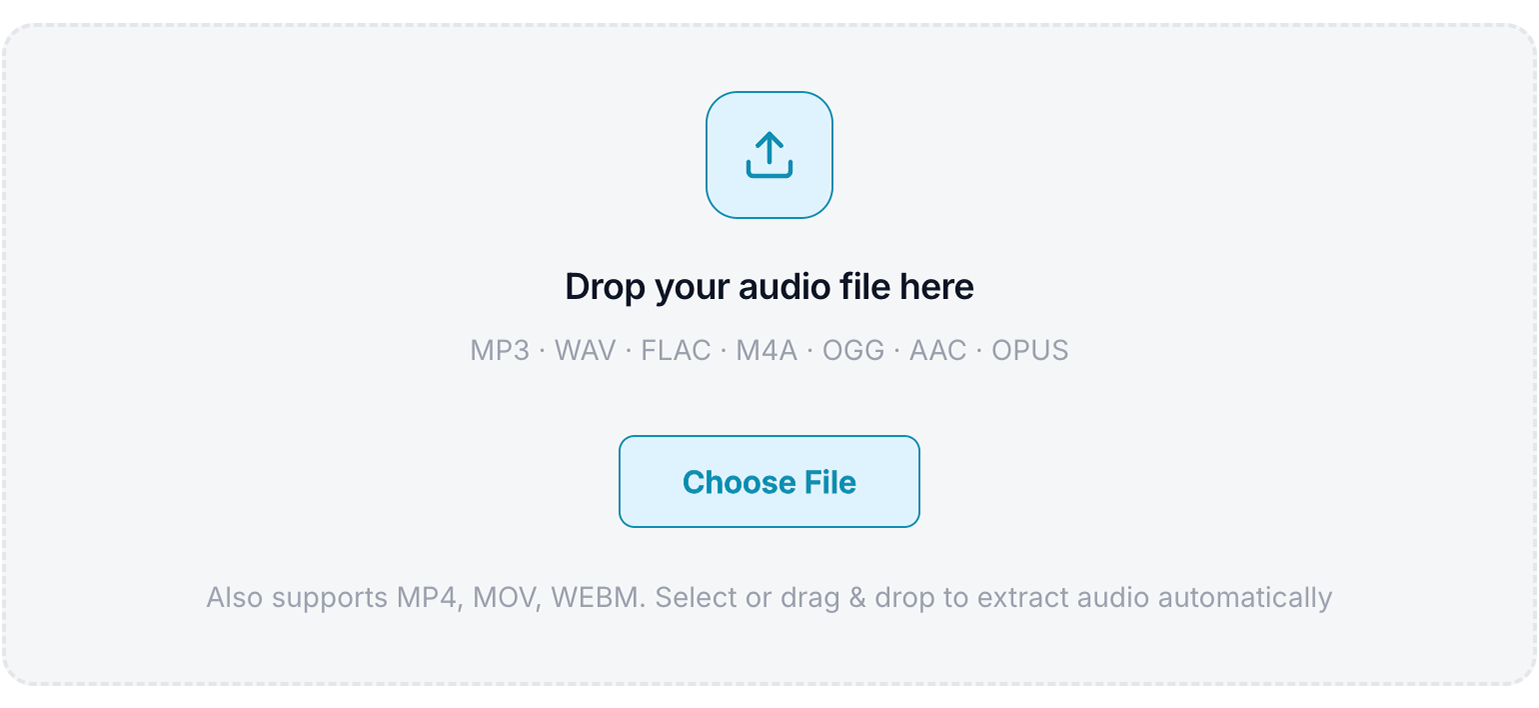
Upload area

Once uploaded, a waveform editor will appear, displaying the entire audio file. The default [IN] and [OUT] points correspond to the full length of the file.

You can also upload videos in MP4, MOV or WEBM formats. The algorithm will automatically extract the audio track, which will immediately appear in the waveform editor. From there, you can work with it just like any other audio file.

Supported audio formats: MP3, WAV, FLAC, M4A, OGG, AAC, OPUS

Supported video formats: MP4, MOV, WEBM

Tip: Upload video files (MP4, MOV or WEBM) to automatically extract the audio without additional tools.

Step 2

Waveform Editor

The canvas is your main visual workspace. Here, you can view your audio waveform and edit breath or silence segments, whether detected automatically or created manually. Blue areas indicate breathing segments, red areas indicate silence segments, and the thin black vertical line shows the playback slider.
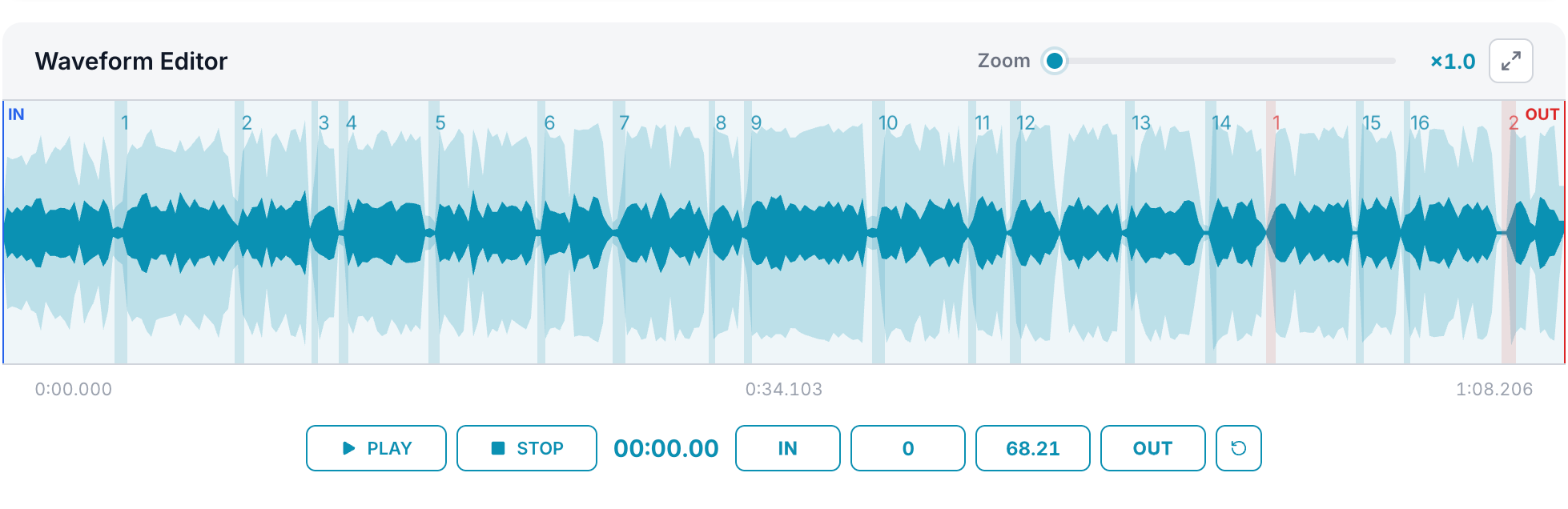
Waveform Editor
Trim Audio You can manually trim your audio to select only the portion you want to export. The vertical markers on the waveform – blue [IN] and red [OUT] – define the export range. To trim your audio:
  • Drag the [IN] and [OUT] markers to the desired positions.
  • Place the playback slider at the point where you want to trim the start of the audio and click the [IN] button. Then move the playback slider to the point where you want to trim the end of the audio and click the [OUT] button.
  • Manually enter the start and end times for the audio range if needed.
0:00 / 0:00
Zoom Slider [×1.0] to [×50.0]. Use the slider above the canvas or your mouse scroll wheel on the waveform. Zoom always centres on the current playhead position.
Reset Zoom Click this button [⤢] to reset the zoom and fit the waveform to the canvas. The zoom slider is also reset to the default value of [×1.0].
Reset Duration Click this button [↺] to reset the markers to the full length of the audio.
Playback [PLAY] and [PAUSE] toggles playback. [STOP] returns to the start. Click anywhere on the waveform canvas to seek to that position instantly.
Time Display The current playhead position is displayed in the transport bar in [MM:SS.mm] format and updates in real time during playback.

Tip: Use the zoom slider or scroll wheel to focus on detailed areas of your waveform for precise edits.

Step 3

Breath Remover

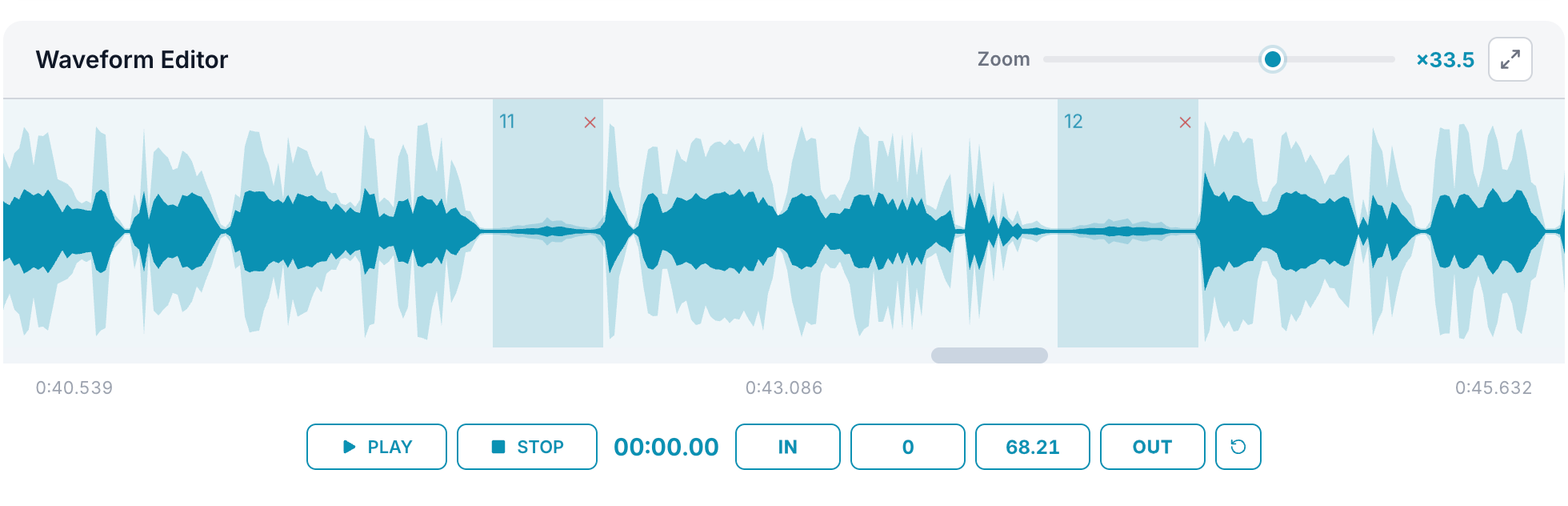
This tool allows you to automatically detect breathing segments. Activate the tool, enable the toggle, and click the [ANALYZE BREATHS] button. Detected segments will appear on the waveform in blue. The number of detected breathing segments will also be displayed next to the [ANALYZE BREATHS] button.
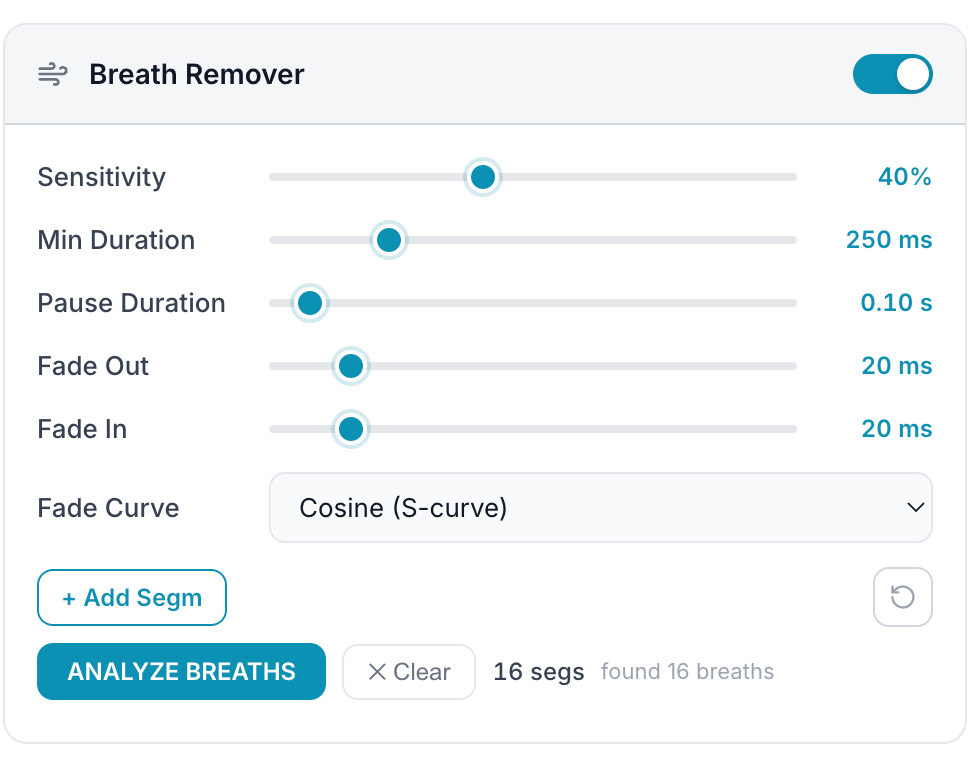
Breath Remover

To remove all detected segments, click the [×Clear] button. To delete a specific segment, right-click anywhere on it or click the [×] icon in the top-right corner. To add a segment, double-click anywhere on the waveform or click the [Add Segm] button and the segment will be added at the current playhead position. You can also manually adjust the boundaries of each segment.
Sensitivity Range: [0–100%]. Higher values detect quieter, more subtle breaths. Lower values capture only louder, more obvious inhales. Start at 40% and adjust as needed. [Default: 40%].
Min Duration Range: [50–1000 ms]. Minimum sound length to be classified as a breath. Raise to 300–400 ms to avoid falsely clipping short consonants or plosives. Default: [250 ms].
Pause Duration Range: [0.00–2.00 s]. A short silence inserted where each breath was removed, so edits don't feel abrupt. 0.10–0.15 s gives a natural pause. Set to 0 for the tightest possible edits. Default: [0.10 s].
Reset Defaults Click this button [↺] to reset parameters to their default values.
Breath segments on waveform

All segments shown on the waveform will be removed during final export. In the Preview panel, you can listen to the processed audio with breathing segments already removed. To do this, click [APPLY CHANGES] and then press [PREVIEW].

0:00 / 0:00

For best results, fine-tune detection sensitivity, minimum duration, and other parameters to match your specific audio. When changing the Sensitivity and Min Duration settings, you need to manually restart the search process each time by clicking the [ANALYZE BREATHS] button.

Fade Out / In Range: [0–150 ms per segment]. Applies a crossfade at each cut boundary to eliminate clicks and pops. A value of 10–25 ms is inaudible for most material. Default: [20 ms per segment].
Fade Curve Cosine (S-curve) – recommended. Provides the most natural-sounding fade and is virtually imperceptible in voice recordings. Linear – constant slope. Exponential / Log – faster or slower fade curves for creative use.

Tip: If you get too many false positives, lower Sensitivity to 20–30%. If quiet breaths are missed, raise to 55–70%. Always review segments visually on the waveform before exporting.

Step 4

Silence Remover

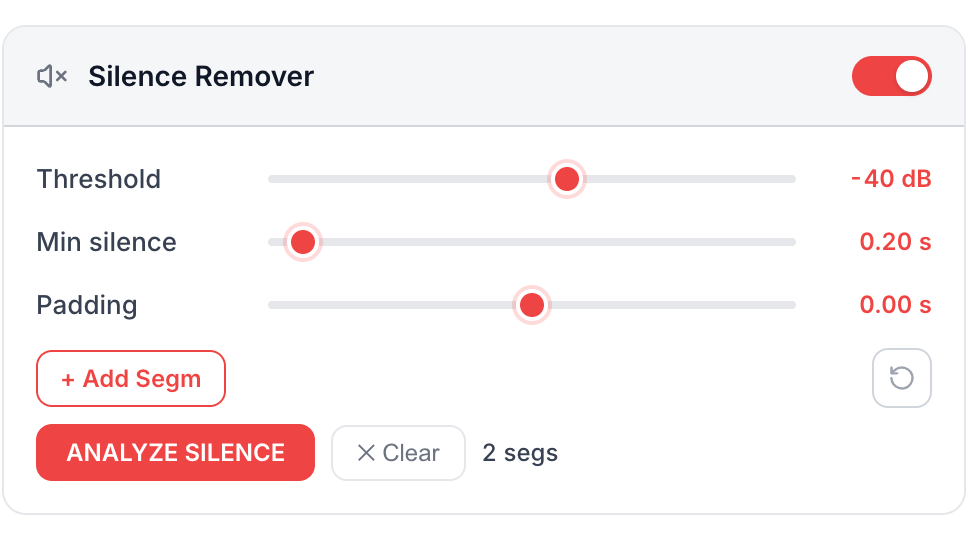
This tool allows you to automatically detect silence segments. Activate the tool, enable the toggle, and click the [ANALYZE SILENCE] button. Detected segments will appear on the waveform in red. The number of detected silence segments will also be displayed next to the [ANALYZE SILENCE] button.
Silence Remover

To remove all detected segments, click the [×Clear] button. To delete a specific segment, right-click anywhere on it or click the [×] icon in the top-right corner. To add a segment, double-click anywhere on the waveform or click the [Add Segm] button and the segment will be added at the current playhead position. You can also manually adjust the boundaries of each segment.

All segments shown on the waveform will be removed during final export. In the Preview panel, you can listen to the processed audio with silence segments already removed. To do this, click [APPLY CHANGES] and then press [PREVIEW].
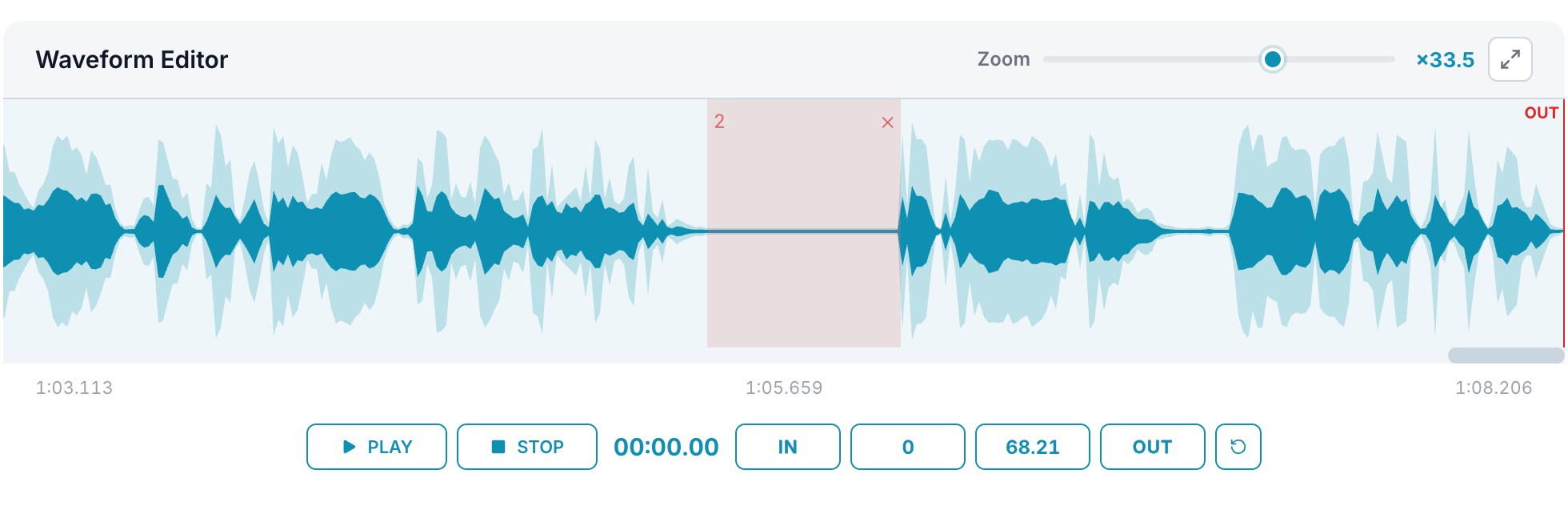
Threshold Range: [−80 to −10 dB]. Audio below this level is classified as silent. −40 dB works well for most recordings. Lower values detect only the quietest gaps, while higher values remove more borderline sections. Default: [−40 dB].
Min Silence Range: [0.01–5.00 s]. Minimum gap duration to be flagged. Prevents short natural pauses between words from being removed. Reduce to 0.05–0.10 s for more aggressive removal of quiet sections. Default: [0.20 s].
Silence segment on waveform

For best results when detecting silence for a specific audio file, fine-tune the Threshold, Min Silence, and Padding parameters. When changing the Threshold and Min Silence settings, you need to manually restart the search process each time by clicking the [ANALYZE SILENCE] button.

0:00 / 0:00

Padding updates all segment boundaries visually in real time – no re-analysis needed.

Padding Positive [+] expands each segment boundary outward – removing more audio around every silence. Negative [−] shrinks boundaries inward – keeps more audio at the edges. Changes apply instantly to all segments. Segments that collapse to zero width are removed automatically. Default: [0.00 s].
Reset Defaults Click this button [↺] to reset parameters to their default values.

Tip: Padding affects all segments – both auto-detected and manually added. It does not trigger re-analysis. Use +0.03 s to capture the leading/trailing edge of each silence, or −0.03 s to preserve natural breath room around silences.

Step 5

Editing Segments

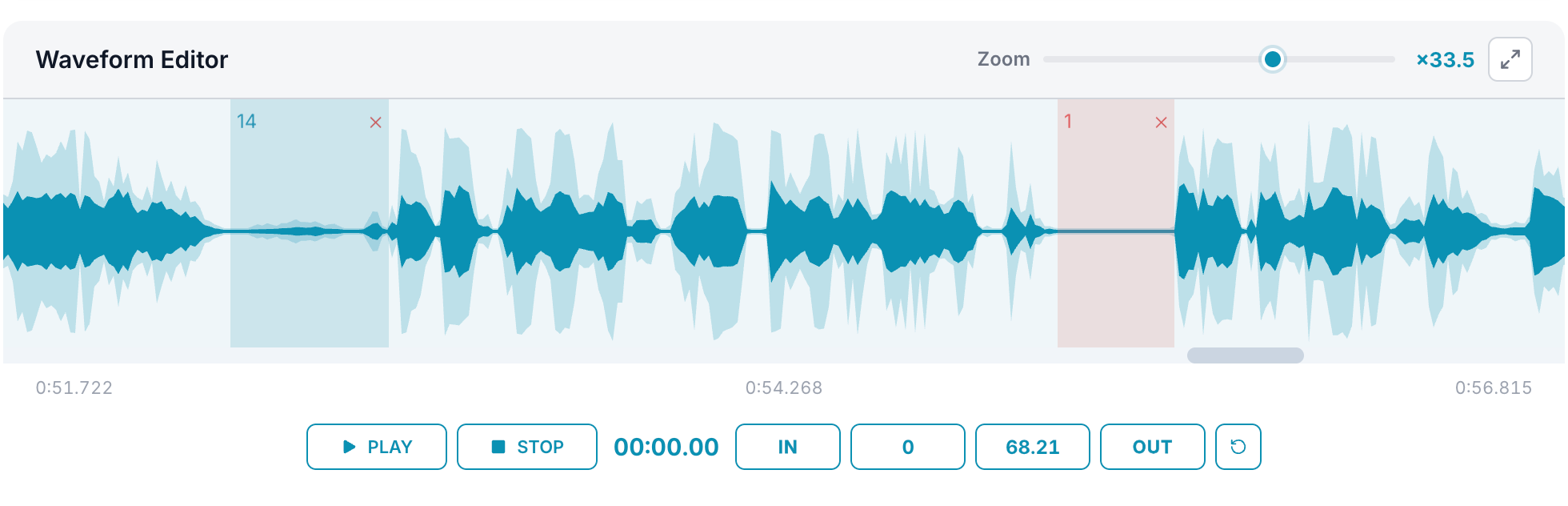
Each segment – whether automatically detected or manually added – can be edited directly on the waveform canvas.
Editing Segments
Add Segments Double left-click on the canvas to add a 0.3 s segment centred on the click. When only Breath toggle is on – adds a breath segment. When only Silence toggle is on – adds a silence segment. When both the Breath and Silence toggles are on, double left-click on the canvas adds a silence segment, and double right-click adds a breath segment. You can also manually add the required segment by clicking the [Add Segm] button in the corresponding panel. In this case, the segment will be added at the current playhead position. When both toggles are off, no segments can be added.
Edit Segments Hover over a segment boundary – the cursor changes to [↔]. Drag left or right to resize. The segment updates when the mouse is released.
0:00 / 0:00
Delete Segments Single right-click deletes the segment under the cursor. Each segment shows a small [×] icon in its top-right corner (visible when the segment is wide enough). Click it to delete that individual segment.

The [×Clear] button in the module toolbar removes all segments of that type at once. Breath and Silence segments are cleared independently. The [×Clear] button can be found to the right of the [ANALYZE BREATHS] and [ANALYZE SILENCE] buttons on their respective module toolbars. Next to the [×Clear] button, the total number of segments (breath or silence) currently displayed on the waveform will be shown.

Note: Breath and silence segments that were manually added to the canvas (not automatically detected) will be removed from the canvas when the [ANALYZE BREATHS] and [ANALYZE SILENCE] buttons are pressed, respectively.

Step 6

Speed Control

Enable the Speed toggle and set a multiplier between [×1.00] and [×5.00]. DeBreather uses a professional time-stretching algorithm that changes playback rate while preserving the original pitch perfectly.

0:00 / 0:00

Speed is applied as the last processing step, after all breath and silence removal. So the final file duration accounts for both the removed segments and the speed multiplier.
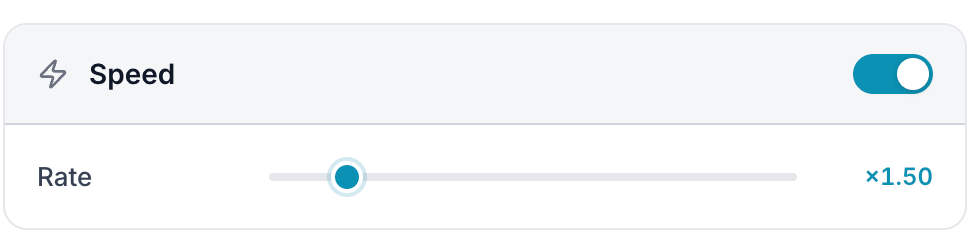
Speed Control
Speed rate Range: [×1.00–×5.00]. Step: [×0.01]. Default: [×1.00].

Note: The audio duration displayed in the preview header shows the exact final length of the output file.

Step 7

Preview & Export

The Preview panel shows the processed waveform. Click [APPLY CHANGES] after any edit to rebuild it. Then press [PREVIEW] to listen in the browser. What you hear is exactly what will be exported.


Preview & Export
Apply Changes In the Preview panel, you can listen to the edited audio ready for final export. To do this, click the [APPLY CHANGES] button, then press [PREVIEW]. Clicking [APPLY CHANGES] generates a fully accurate preview, applying all edits, including speed adjustments. The button will turn light gray when changes are applied. It will highlight in red whenever any edit is made. When the [APPLY CHANGES] button is light gray, all edits have been applied and the file is ready for export. Everything you hear in Preview will match exactly what is exported.
Preview Plays back the processed audio in the browser. Click anywhere or drag the playback slider on the Preview waveform to seek to that position. The time counter updates in real time.
0:00 / 0:00
Duration Display Shown top-right of the Preview panel. Compare with the original file length to confirm how much was removed in total.
Export buttons
Export WAV Lossless WAV PCM output. Maximum quality, larger file size. Recommended for further editing in a DAW or professional audio workflow.
Export MP3 192 kbps MP3. Smaller file with excellent quality. Best for podcasts, voiceovers, e-learning and online publishing.

Note: Output filename: originalname_[debreather.pro].wav or .mp3 – downloaded directly to your system «Downloads» folder. All processing happens locally in your browser. Your files never leave your device or get uploaded to any server.

No results found

Ready to clean your audio? Click Start Edit and upload your first file.

How can we help?

We're always here to help make your audio work easier.

General
DeBreather uses advanced audio analysis algorithms to detect breathing sounds and silence based on their unique acoustic signatures. Our technology analyzes the audio waveform's energy levels, frequency patterns, and duration to identify breathing sounds with high accuracy. You can adjust the sensitivity to fine-tune detection for your specific recording environment.
Yes at all! DeBreather is designed to remove breathing sounds and silence while maintaining natural speech rhythm and flow. Rather than creating abrupt cuts, the tool intelligently adjusts the timing to ensure your audio sounds professional and natural. You can also control the pause duration to match your preference for pacing.
Yes! DeBreather can be used completely free of charge, with no limits on usage time or the number of processed files, and with access to all available features and tools. The only limitation of the Free version is that the uploaded file size is restricted to 5 MB, and the audio duration is limited to 30 seconds. However, the Pro subscription, available for a nominal fee, removes these limitations and allows processing files up to 500 MB in size and up to 1 hour in duration. We believe in making professional audio tools accessible to everyone.
Not at all! DeBreather processes your audio entirely within your browser. Your files never leave your computer or get uploaded to any server, ensuring complete privacy and security for your content.
DeBreather supports most common audio formats including MP3, WAV, M4A, OGG, AAC, FLAC and OPUS. Processed files are downloaded in high-quality WAV format to preserve audio fidelity. An export option to MP3 at 192 kbps is also available if you need to reduce file size without noticeable loss of quality.
We recommend keeping files under 100 MB for optimal browser performance, as all processing happens locally on your device. For longer recordings, you may want to split your audio into smaller segments before processing. With a Pro subscription, you can use files up to 500 MB in size and up to 1 hour in duration. When using the Free version, the uploaded file size is limited to 5 MB, and the audio duration is limited to 30 seconds.
DeBreather is a local audio editor that automatically detects and removes breath sounds and silence from recordings using AI-powered spectral analysis. It is designed for podcasters, voiceover artists, journalists, and anyone who wants to produce clean, professional-sounding audio. All processing runs entirely in your browser – your files never leave your device.
DeBreather is ideal for podcasters, voiceover artists, interviewers, e-learning producers, YouTubers, and audio engineers who want to quickly clean up spoken-word recordings. No prior audio editing experience is required – the tool is designed to be intuitive and fully automatic, while still offering fine-grained manual control for advanced users.
Yes. You can also upload videos in MP4, MOV or WEBM formats. The algorithm will automatically extract the audio track, which will immediately appear in the waveform editor. From there, you can work with it just like any other audio file.
Yes, completely. All audio processing happens directly in your browser using advanced algorithms. Your files are never uploaded to any external servers. Your privacy is our priority.
The recommended workflow is:
  1. Upload your audio or video file.
  2. Trim the audio using the [IN] and [OUT] markers if needed.
  3. Enable Breath Remover, click [ANALYZE BREATHS], and review the detected segments.
  4. Enable Silence Remover, click [ANALYZE SILENCE], and review the detected segments.
  5. Edit segments manually if needed – add, delete, or resize.
  6. Optionally adjust Speed Control.
  7. Click [APPLY CHANGES], listen to the Preview, then export as WAV or MP3.
Upload & Waveform Editor
Drag any audio or video file directly into the upload area, or click [Choose File] to browse. The file is decoded locally in your browser – nothing is sent to any server. Once uploaded, the waveform editor appears with the full audio displayed and the [IN] and [OUT] markers set to the full file duration.
Yes. Upload any MP4, MOV or WEBM video file and DeBreather will automatically extract the audio track, which immediately appears in the waveform editor. From there you can work with it exactly like any audio file – no separate extraction tool needed.
Use the zoom slider above the waveform canvas (range: ×1.0 to ×50.0), or scroll with your mouse wheel directly on the waveform. Zoom always centres on the current playhead position. To reset zoom and fit the entire waveform in the canvas, click the [⤢] button – it resets zoom to ×1.0.
Use the [IN] (blue) and [OUT] (red) markers to define the export range. There are three ways to set them:
  • Drag the markers directly on the waveform.
  • Move the playhead to the desired position and click the [IN] or [OUT] button to snap the marker there.
  • Manually type the start and end times in the time input fields.
To reset both markers to the full audio duration, click the [↺] button.
[PLAY] and [PAUSE] toggle playback. [STOP] returns the playhead to the start. Click anywhere on the waveform canvas to instantly seek to that position. The current playhead time is shown in the transport bar in MM:SS.mm format and updates in real time during playback.
Blue regions are breath segments detected or added by the Breath Remover. Red regions are silence segments from the Silence Remover. Both types will be removed during export. The thin black vertical line is the playhead showing the current playback position.
Breath Remover
The Breath Remover uses AI-powered spectral analysis – measuring spectral flatness, tonality, and frequency distribution – to identify breath sounds. It is not purely volume-based, so it can distinguish breaths from quiet speech. Enable the toggle, then click [ANALYZE BREATHS]. Detected segments appear in blue on the waveform. The total count is displayed next to the button.
Sensitivity (range 0–100%, default 40%) controls how subtle a breath must be to be detected. Higher values catch quieter and more subtle breaths. Lower values capture only louder, more obvious inhales. Start at 40% and adjust to match your recording. When changing the Sensitivity, you need to manually restart the search process each time by clicking the [ANALYZE BREATHS] button
Min Duration (range 50–1000 ms, default 250 ms) sets the minimum length of a sound to be classified as a breath. Raise it to 300–400 ms if you are getting false positives on short consonants or plosives. When changing the Min Duration, you need to manually restart the search process each time by clicking the [ANALYZE BREATHS] button.
Pause Duration (range 0.00–2.00 s, default 0.10 s) inserts a short silence in place of each removed breath so edits do not feel abrupt. A value of 0.10–0.15 s gives a natural pause. Set it to 0 for the tightest possible edits where you want maximum silence removed.
Fade Out and Fade In (range 0–150 ms each, default 20 ms) apply a crossfade at each cut boundary to eliminate clicks and pops. A value of 10–25 ms is inaudible for most material.

For Fade Curve: Cosine (S-curve) is recommended – it provides the most natural-sounding fade and is virtually imperceptible in voice recordings. Linear is a constant slope. Exponential / Log offer faster or slower curves for creative use.
Too many false positives (words or sounds wrongly flagged): lower Sensitivity to 20–30% and/or increase Min Duration to 300–400 ms.

Quiet breaths are missed: raise Sensitivity to 55–70% and/or reduce Min Duration. Always review segments visually on the waveform before exporting and delete any incorrect ones manually.
Yes. When changing the Sensitivity and Min Duration settings, you need to manually restart the search process each time by clicking the [ANALYZE BREATHS] button. Parameters like Pause Duration, Fade Out/In, and Fade Curve do not require re-analysis – they take effect at export time. To reset all parameters to their defaults, click the [↺] button in the Breath Remover panel.
Silence Remover
The Silence Remover detects audio gaps that fall below a set volume threshold. Enable the toggle and click [ANALYZE SILENCE]. Detected silence segments appear in red on the waveform, and the total count is shown next to the button. All red segments will be removed from the final export.
Threshold (range −80 to −10 dB, default −40 dB) sets the volume level below which audio is classified as silent. −40 dB works well for most recordings. Lower values (e.g. −60 dB) detect only very quiet gaps. Higher values (e.g. −25 dB) remove more borderline sections.
Min Silence (range 0.01–5.00 s, default 0.20 s) sets the minimum gap duration to be flagged as silence. This prevents short natural pauses between words from being incorrectly removed. Reduce to 0.05–0.10 s for more aggressive removal of brief quiet sections. When changing the Min Silence, you need to manually restart the search process each time by clicking the [ANALYZE SILENCE] button
Padding (default 0.00 s) expands or shrinks the boundary of every silence segment in real time – no re-analysis needed. Positive (+) values expand boundaries outward, removing more audio around each silence. Negative (−) values shrink boundaries inward, preserving more audio at the edges. Segments that collapse to zero width disappear automatically. Use +0.03 s to capture leading/trailing edges, or −0.03 s to preserve natural breath room around silences.
Yes. Padding affects all silence segments – both auto-detected and manually added. Changes apply instantly. It does not trigger re-analysis.
Yes. When changing the Threshold and Min Silence settings, you need to manually restart the search process each time by clicking the [ANALYZE SILENCE] button. Padding updates all segment boundaries instantly in real time with no re-analysis. To reset all parameters to their defaults, click the [↺] button in the Silence Remover panel.
Editing & Export
Yes. Every segment can be edited directly on the waveform canvas:
  • Add: Double left-click to add a 0.3 s segment. With only Breath Remover toggle on – adds a breath segment. With only Silence Remover toggle on – adds a silence segment. With both toggles on – double left-click adds silence, double right-click adds breath segment. You can also manually add the required segment by clicking the [Add Segm] button in the corresponding panel. In this case, the segment will be added at the current playhead position.
  • Resize: Hover over a segment boundary (cursor changes to ↔) and drag left or right.
  • Delete specific segment: Right-click on it, or click the [×] icon in its top-right corner.
  • Delete all segments of a type: Click the [×Clear] button in the module toolbar or simply disable the toggle in the corresponding panel.
Yes. When you press [ANALYZE BREATHS] or [ANALYZE SILENCE], all manually added segments of that type are replaced by the new auto-detected results. To preserve manual edits, make them after running the analysis, not before.
The Preview panel shows the processed waveform with all edits applied. Click [APPLY CHANGES] to rebuild it – the button turns red when unsaved changes are pending, and light gray when all changes are applied. Then press [PREVIEW] to listen. Click anywhere or drag the playback slider on the Preview waveform to seek. What you hear in Preview is exactly what will be exported.
Enable the Speed toggle and set a multiplier between ×1.00 and ×5.00 (step ×0.01, default ×1.00). DeBreather uses a professional time-stretching algorithm that changes playback rate while preserving original pitch. Speed is applied as the very last processing step after all breath and silence removal, so the final file duration accounts for both removed segments and the speed multiplier. The duration in the preview header shows the exact final output length.
Export WAV produces lossless PCM audio – maximum quality, larger file size. Recommended for further editing in a DAW or professional workflow.

Export MP3 produces 192 kbps MP3 – excellent quality with a much smaller file size. Best for podcasts, voiceovers, e-learning, and online distribution.

The output file is named originalname_[debreather.pro].wav or originalname_[debreather.pro].mp3 and is saved directly to your Downloads folder.
Processing at export always follows this fixed order:
  1. Trim – audio is cropped to the [IN]–[OUT] range.
  2. Breath and Silence removal – all marked segments are removed in a single pass with fades applied at each boundary.
  3. Speed – time-stretching is applied last, so the final duration reflects all prior removals.
  4. Encode – result is written to WAV or MP3.
Yes. Both tools can be active simultaneously. At export, breath and silence segments are merged and processed together in a single pass to ensure there are no conflicts or overlaps. Pause Duration and fades apply only to breath segments, not to silence segments.
The exported file is downloaded directly to your system's default Downloads folder. The filename is based on the original: originalname_[debreather.pro].wav or originalname_[debreather.pro].mp3. All processing happens locally in your browser – no data is ever uploaded to any server.
Billing & Account
Click Log In in the top-right corner of the navigation bar, then choose Sign Up. Enter your name, email and a password of at least 8 characters. You can also sign in with Google.
Try the following steps:
  1. Check your email and password for typos or incorrect keyboard layout.
  2. Use Forgot password? to reset your password.
  3. Make sure you are using the same sign-in method you registered with (email or Google).
  4. Clear your browser's cache and cookies, then try again.
  5. Try a different browser or private/incognito window.
If none of these work, please contact our support team.
Log in to your account, click your avatar in the top-right corner, and then click Manage Subscription in the user menu that appears. On the page that opens, find and click the Cancel Subscription button. Your subscription will then be canceled. After cancellation, you will retain access to Pro features until the end of the current billing period.
This can happen if the subscription was purchased under a different email address. Check all email addresses you may have used. If you are certain the charge was on the correct account, please contact support with your payment receipt.
First check whether you have a subscription under a different email address and cancel any unwanted duplicates. If you are sure there is only one account and were still charged twice, contact our support team with both payment receipts and we will investigate.
  1. Double-check the card number, expiration date, and CVV.
  2. Ensure the account has sufficient funds.
  3. Make sure online and international payments are enabled in your banking app.
  4. Check for any transaction alerts from your bank – it may have blocked the charge for fraud protection.
  5. Disable VPN or proxy if active, as these can trigger fraud detection.
  6. Try a different card or browser.
Still having issues? Contact support with the error message you see.
All subscription payments are generally non-refundable. However, refunds may be issued for duplicate charges, verified persistent technical issues, or unauthorised transactions. See our full Refund Policy for details.
Technical
This usually means the browser was unable to decode the audio format. Try the following:
  • Convert the file to WAV or MP3 using another tool and upload it again.
  • Use a Chromium-based browser (Chrome, Edge, Brave) – it supports the widest range of codecs.
  • Make sure the file is not corrupted – try playing it in a media player.
  • Check that the file extension matches its actual format.
No segments found:
  • Breath Remover: increase Sensitivity (try 55–70%).
  • Silence Remover: raise the Threshold (e.g. from −40 to −30 dB) or reduce Min Silence.
  • Make sure the toggle for the relevant module is enabled before clicking Analyze.
Too many segments / false positives:
  • Breath Remover: lower Sensitivity (try 20–30%) and increase Min Duration to 300–400 ms.
  • Silence Remover: lower the Threshold (e.g. from −40 to −55 dB) or increase Min Silence.
  • Remove false segments manually by right-clicking them on the waveform.
All processing runs in your browser. Large files (about 1 hour) or files with many segments may take longer. Keep the browser tab active during export – background tabs may be throttled by the browser. If progress is genuinely stuck, try refreshing the page and re-uploading the file.
Make sure you clicked [APPLY CHANGES] after all edits before exporting. The button turns red when there are pending changes. When it is light gray, all edits are applied and the Preview reflects exactly what will be exported.
DeBreather works best in Chromium-based browsers: Google Chrome, Microsoft Edge, and Brave. Firefox is supported but has a narrower range of decodable audio formats. Safari may have limitations with some audio codecs. For the best experience, use the latest version of Chrome or Edge.
No results found for your search.
Clear search

Still have questions? Our team is happy to help.

Refund Policy

Clear and fair rules for refunds.

Free Plan

This article introduces our refund policies regarding purchases made on our website https://debreather.pro

To ensure that our users are confident in their purchase decisions, we offer a generous free plan. This plan allows you to become acquainted with our services and understand how they work before opting for a paid subscription. We believe that this is an essential step in making an informed decision about whether our services are right for you.

Subscription-based Services

Debreather.pro operates on a subscription basis, providing monthly and yearly subscription options to cater to your specific needs. By subscribing to our services, you gain access to an enhanced experience with additional features and capabilities beyond what the free plan offers.

Refund Policy

At debreather.pro all payments made for monthly or yearly subscriptions are considered to be non-refundable. We have formulated this refund policy keeping in mind the nature of our digital services and the availability of a free plan that provides a transparent and risk-free opportunity for users to evaluate our services.

Refunds will not be issued for the following reasons:

  1. If you decide that you no longer need the service after the purchase.
  2. If you purchase a subscription but do not or seldom use the service.
  3. If the price of a subscription changes following your purchase.
  4. If an accidental purchase occurs.
  5. If the service does not meet your expectations or preferences.
  6. If you no longer require the service.
  7. If you are not satisfied with the current features or were unable to find specific features you were looking for.
  8. If you have discovered an alternative service that you prefer.
  9. If you are experiencing slow loading speeds when using our service in your browser. Keep in mind that these speeds are influenced by your internet connection and your Internet Service Provider's performance, not our service.
  10. If audio editing takes longer than expected, which can occur with high quality audio requiring reencoding for quality purposes. Please keep in mind that these performance metrics depend on your device’s capabilities, operating system, and the browser in which you use our service, rather than on the performance of our service itself. This is because all audio processing takes place entirely locally on your device and within your browser. Your files are never transmitted or uploaded to our server. Processing times can be shortened by submitting audio of a lower quality.
  11. If you experience intermittent technical problems with our service. We work diligently to resolve any issues or bugs promptly upon discovery.
  12. If you forget to manually cancel your subscription or fail to seek cancellation help from our support team before the renewal date.
Exceptions to Non-Refundable Payments

There are a few exceptions where a refund might be applicable. These exceptions are:

  • Duplicate Charges: In the event of a billing error resulting in duplicate charges, we will investigate the matter and issue a refund for the erroneous charge(s) if confirmed.
  • Technical Issues: If you experience persistent and unresolved technical issues that significantly prevent you from using the service, and our support team is unable to resolve these issues.
  • Unauthorized Charges: In the case of fraudulent or unauthorized charges, we will investigate the matter and, if verified, will initiate a refund process.
Processing Refunds

Should a refund be issued as per the aforementioned exceptions, it will be processed to the original method of payment. Please note that the time frame for the refund to be reflected in your account may vary depending on the financial institution involved.

We encourage our users to reach out to our customer support team for assistance before filing a refund request. Our team is committed to resolving your concerns and ensuring a satisfactory experience.

By subscribing to and using the services of debreather.pro, you acknowledge that you have read, understood and agreed to the terms outlined in this Refund Policy.

For any questions or assistance, please contact our customer support team. We are here to help!

Thank you for choosing debreather.pro

No results found

Questions about billing? We're happy to help.

Privacy Policy & Terms

We respect your privacy and keep things transparent.

General provisions

This Privacy Policy governs the collection, use and storage of information (hereinafter: Information) and any data (hereinafter: Data) obtained through your use of our website available at https://debreather.pro (hereinafter: Site) and any service available on the Site (hereinafter: Services). We do not sell, rent or otherwise make available Information or Data to third-parties. We use collected Information and Data for our internal purposes and as necessary by the nature of the Services. In some instances, we are obliged to comply with court orders and government requests and provide Information or parts of it to authorized bodies. We may disclose or access Information whenever we believe in good faith that the law so requires, such as to comply with a litigation, or that disclosure is necessary to protect our rights, protect your safety or the safety of others, investigate fraud, or if we otherwise consider it necessary to do so to maintain service and improve our products and services. The Information on users is divided into personally identifiable and non-personally identifiable Information depending on whether Information can identify the user as a specific person.

Changes to the Privacy Policy

We reserve the right to change our Privacy Policy at any time without prior notification. The current version of Privacy Policy is available on the Site, indicating the effective date. You are encouraged to periodically check our Privacy Policy.

Personally identifiable information

No registration is necessary for the use of our Services. We do not collect any personally identifiable information, your IP address, or any other Information which either alone or in connection with other data can be used to identify you.

If you send an e-mail to our e-mail address indicated on the Site, we may keep records of such communication and any question, complaint or compliment made by you and the response if any. Whenever you contact us, we will only use your e-mail address in order to provide the response, if any. We do not store your e-mail address nor use it for any other purpose.

We endeavor to maintain appropriate physical, procedural and technical security with respect to the collected information so as to prevent any loss, misuse, unauthorized access, disclosure, or modification of personal information which also applies to our disposal or destruction of personal information. Our Site uses SSL encryption in order to provide additional security of your information.

Non-personally identifiable information and data

During your use of our Service, you may provide us with Non-Personally Identifiable Information and Data as necessary by the nature of the Service. You can either upload Data on your own or use Cloud Providers (Google Drive or Dropbox) to upload your Data from cloud storage.

We use such Information and Data only for the purpose of providing you with the Service requested and to improve the user experience. We do not monitor or access the Data provided by you. Processing of the Information and Data is completely automated without any human interaction or supervision.

If you choose to upload your Data through the Cloud Providers, you are giving us permission to access and to view, download and interact with such Data. We are only interacting with the Data in a way that is strictly necessary by the nature of the requested Service. We do not access, collect, use or store any Data or Information that is not necessary to provide you with the Service requested.

Any Data which you provide for the purpose of utilizing our Services is stored on our servers only for as long as necessary, and is deleted automatically no later than twelve (12) hours from the moment you complete your use of our Services.

Cookies

Cookies help us optimize and improve the user experience of the Site by helping us deliver crucial functionalities. The cookies we use may vary over time as we continuously update and improve our Site.

Third party applications that we use, such as Dropbox, Google Drive, Google Analytics, Google DoubleClick, and Google Adsense do use cookies on our site to help analyse the web traffic or determine targeted advertisements based on your preferences. To opt out of Google's use of cookies, please visit the Google ad and content network privacy policy. If you prefer not to use cookies at all, we recommend adjusting your browser settings accordingly. If you are unsure how to do that, use your favorite search engine to find out everything about it or visit cookiesandyou.com.

Use of your information

We use your information in order to deliver our Services, to analyze the use of the Site, and the Services, to develop new products or services, optimize content, to provide support and to deliver ads based on your preferences. Processing of the Information and Data is automated and done without any supervision or interference by the physical person.

Your information is processed and handled in accordance with applicable laws and with your further consent where necessary.

Third-party service providers may use your information for ads placement and notifications. We do not encourage, support or endorse any ad that is placed on the Site. We have provided you with the full list of third-party services we are using in order to help you understand how your information is handled and you are encouraged to visit their respective privacy policies in order to exercise your right to the control of your personal information.

Data deletion

To submit a data deletion request, please contact us at support@debreather.pro. Please include as much information as possible regarding which data you would like to be deleted.
If you delete your account yourself, all information associated with your use of our service will also be permanently and irreversibly deleted.

Contact information

If you have any questions regarding our Privacy Policy and how the information is handled, or you wish to access, amend, or update your information feel free to contact us at support@debreather.pro

No results found

Have a privacy question? We're here to help.

Contact Us

If you have questions, bugs or ideas, we're listening.

Max size of a single attachment: 7 MB
Max total size of all attachments: 7 MB
Max total number of attachments: 7

Thank you!
Your message has been sent successfully.
We'll get back to you as soon as possible.
Something went wrong
Message could not be sent. Please try again later or email us directly at support@debreather.pro

Simple, transparent pricing

All tools are free. Upgrade for unlimited audio duration, larger uploads, and faster processing.

Monthly Yearly
Free
$ 0
Forever free
All tools included
Max audio duration 30 sec
Max file size 5 MB
Processing speed Fast
No ads
Priority support

Have questions about pricing? We're happy to help.

A
Account

You don't have an active subscription yet

Monthly
$7/ month
Cancel anytime

Free Plan Limit Reached

Your file exceeds the limits of the Free plan.

Your file
Free limit

Upgrade to Pro to process files of any size and duration – up to 500 MB and 2 hours.

Monthly
$7/ month
Cancel anytime
Log In
A single account for all your audio projects
or
Forgot password?
Don't have an account?
Create an Account
A single account for all your audio projects
or
At least 8 characters
Latin letters (A–Z)
At least one digit (0–9)
Special character (!@#$…)
No more than 20 characters
By creating an account you agree to our Privacy Policy & Terms
Already have an account?
Reset Password
Enter your email and we'll send you a reset link
Set New Password
Enter your new password below
At least 8 characters
Latin letters (A–Z)
At least one digit (0–9)
Special character (!@#$…)
No more than 20 characters
Check your email
We sent a password reset link to your email address.
Account not found
Please use the email you registered with.
Loading file…
Reading audio data
0%